
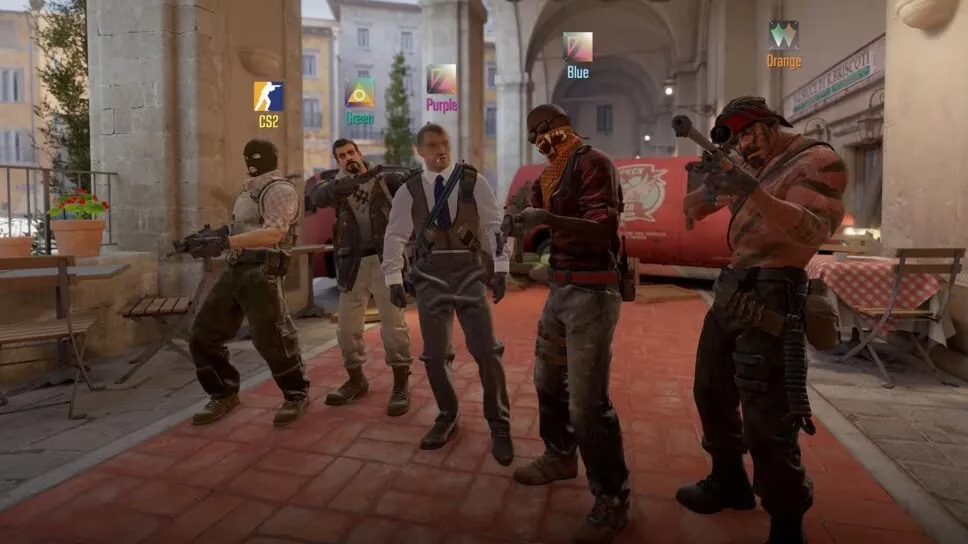
I still spend most of my CS2 time in custom lobbies, and bots are both a blessing and a nuisance. In 2026, CS2 custom practice remains one of my favorite ways to warm up, test utility, and learn map geometry, but bots can clutter the server when I want clean reps. Some evenings I want a silent server for grenade lineups; other evenings I want moving targets for aim practice. The answer is the in-game console. Once I learned the bot commands, my practice sessions became much more controlled. Here is how I remove bots, add them back, and keep my custom lobby exactly how I want it.
Why I remove bots from my CS2 practice server
Bots are useful, but they are not always helpful. When I am studying a smoke from T spawn or testing a molotov angle on Ancient, a bot walking into my line can ruin the rep. When I want to inspect sightlines, check off-angles, or practice a silent entry, bots add noise and unpredictable movement. Removing them gives me a clean sandbox. I can hear my own footsteps, see the exact utility trajectory, and focus on the map rather than on a bot that is stuck on a doorway.
That said, I do not remove bots forever. A completely empty server can feel sterile after a while. Bots give me moving targets for crosshair placement, spray control, and reaction drills. They are not as sharp as real players, but they are better than static aim maps when I want to simulate a live round. The key is control. I decide when bots are present and when they are gone.
The remove commands I use most
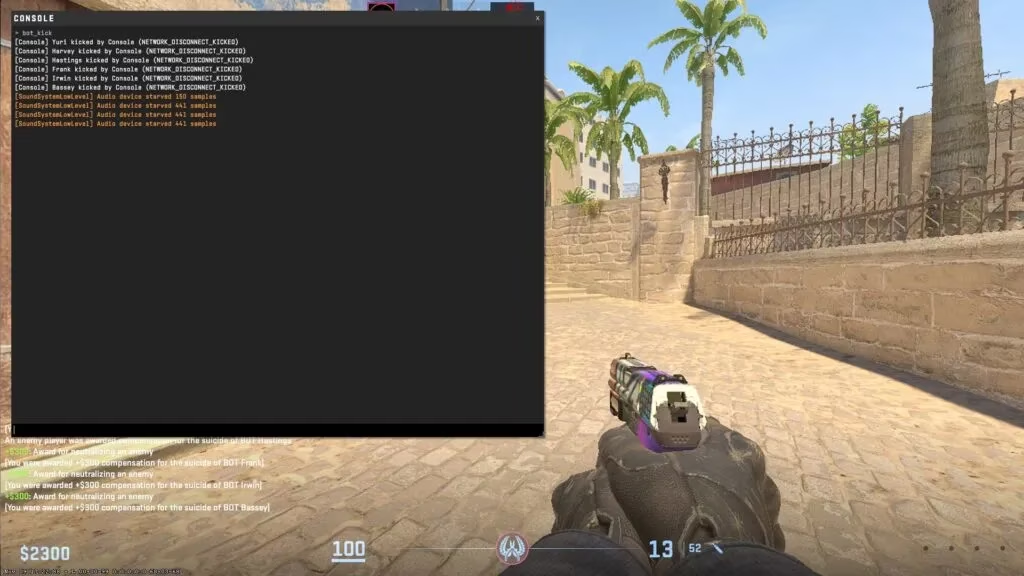
The removal commands are short, and I keep them in mind like a small toolbox. The main command is bot_kick. On its own, it removes every bot from the server. That is my go-to when I want a completely empty lobby. If I only want to clear one side, I add a team argument. bot_kick T removes all Terrorist bots, while bot_kick CT removes all Counter-Terrorist bots. This is handy when I want to practice a CT setup against no T bots, or when I want to test a T execute without CT bots wandering into the site.
For a single bot, I use bot_kick Name, replacing Name with the bot name I see on the scoreboard. I do not need to remove the whole team if one bot is blocking a specific angle. I just target that bot and continue.
| Goal | Command | What it does |
|---|---|---|
| Remove every bot | bot_kick |
Clears all bots from the server |
| Remove all T bots | bot_kick T |
Removes Terrorist bots only |
| Remove all CT bots | bot_kick CT |
Removes Counter-Terrorist bots only |
| Remove one bot | bot_kick Name |
Removes the bot with that name |
My step-by-step routine
My routine is simple and takes only a few seconds:
-
Load into a custom CS2 game or practice lobby.
-
Open the in-game console.
-
Type the command I need.
-
Press Enter to run it.
I usually start with bot_kick when I want a quiet server. If I am testing one side, I use the team-specific command. If a single bot is in the way, I use its name. After that, I can move around the map, throw utility, and study angles without interruptions. It is a small workflow, but it makes my practice much more efficient. 🎯
Adding bots back when I want targets
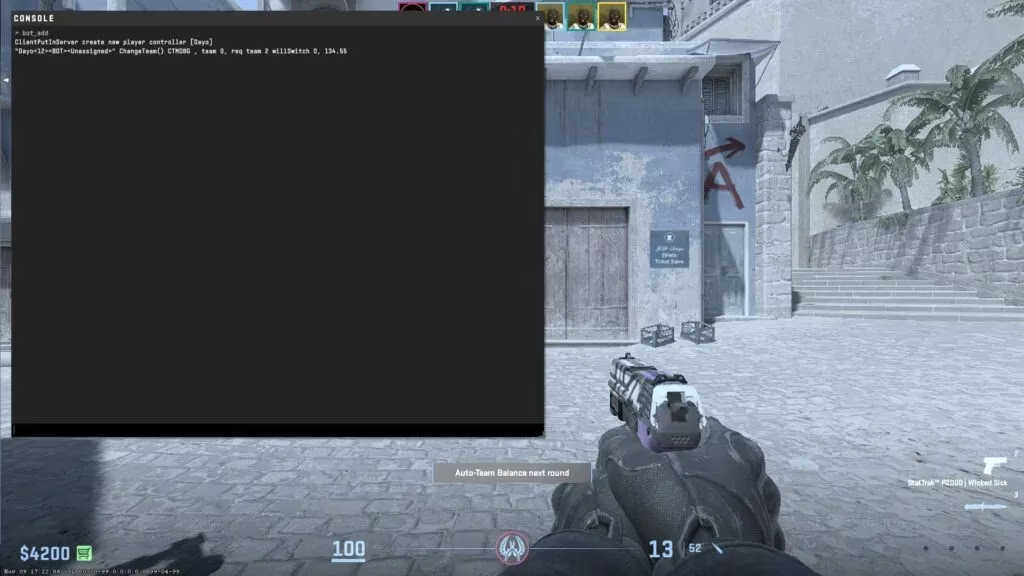
Sometimes I finish my utility practice and want to warm up my aim. That is when I add bots back. The add commands are not perfect mirrors of the remove commands, and that is a little strange at first. The main command is bot_add, which adds a bot to the opposing team. If I want a bot on the Terrorist side, I use bot_add_t. If I want one on the Counter-Terrorist side, I use bot_add_ct.
I add bots one at a time. That gives me control over how many targets I want and which side they join. It is not a one-click fill command, and the underscore in the add commands is easy to forget, but after a few sessions it becomes muscle memory. I treat it like any other part of the CS2 console: type, press Enter, and adjust.
| Goal | Command | What it does |
|---|---|---|
| Add a bot to the opposing team | bot_add |
Adds one bot to the other side |
| Add a T bot | bot_add_t |
Adds one bot to the Terrorist team |
| Add a CT bot | bot_add_ct |
Adds one bot to the Counter-Terrorist team |
How I use bot control in 2026
In 2026, my CS2 practice is still built around small, repeatable sessions. I might spend ten minutes on smoke lineups with no bots, then add a few bots for aim warmup. I might clear one side to test a setup, then add bots back to simulate a round. The console commands are not flashy, but they are reliable. They let me shape the lobby around the drill I want to run instead of letting the lobby shape my practice.
For me, the best part is that bot control works in custom games and practice lobbies without much setup. I do not need a complicated routine. I just need the right command, a clear goal, and a few minutes to focus. Whether I am removing bots for a clean utility session or adding them back for moving targets, the console gives me the flexibility I want as a regular player. 🎮